AI Image Generator
AI Image Generator
Start with a written description when you need a new visual, or upload reference images when you already have a subject, composition, or direction in mind. The AI Image Generator supports both Text to Image and Image to Image for illustrations, concept visuals, campaign assets, and everyday creative image work.
Two Starting Points in the AI Image Generator
Begin with words when no source image exists, or bring reference images when a visual direction is already taking shape. The remaining controls help you choose how the result is generated and framed.
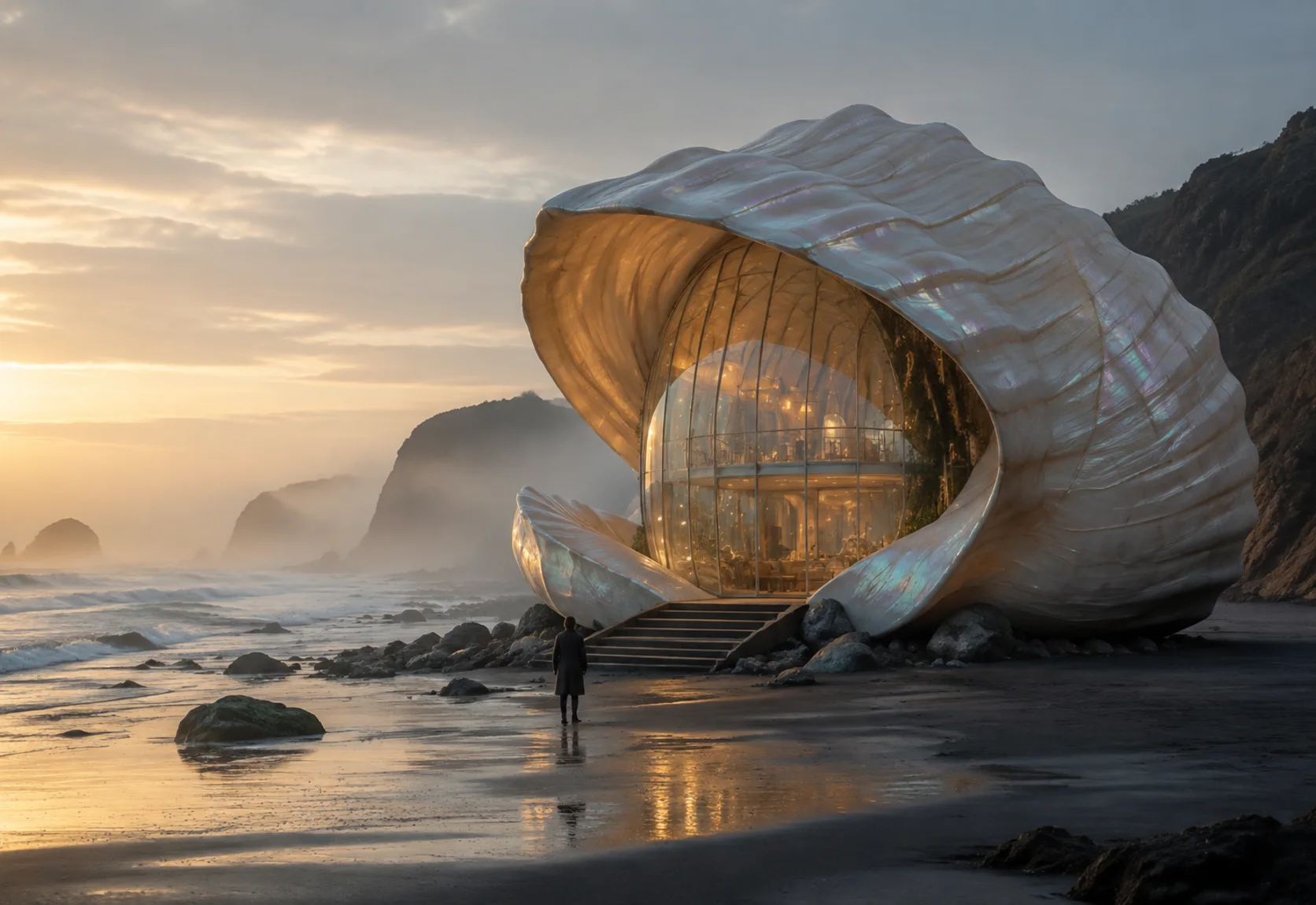
Start a New Image from a Description
Use Text to Image when you have an idea but no source artwork. Describe the subject, setting, mood, and broad visual direction, then generate a starting point that you can review and revise.
- Begin with a written idea instead of an existing image
- Explore early concepts, illustrations, portraits, and backgrounds
- Change the description or model to try another interpretation
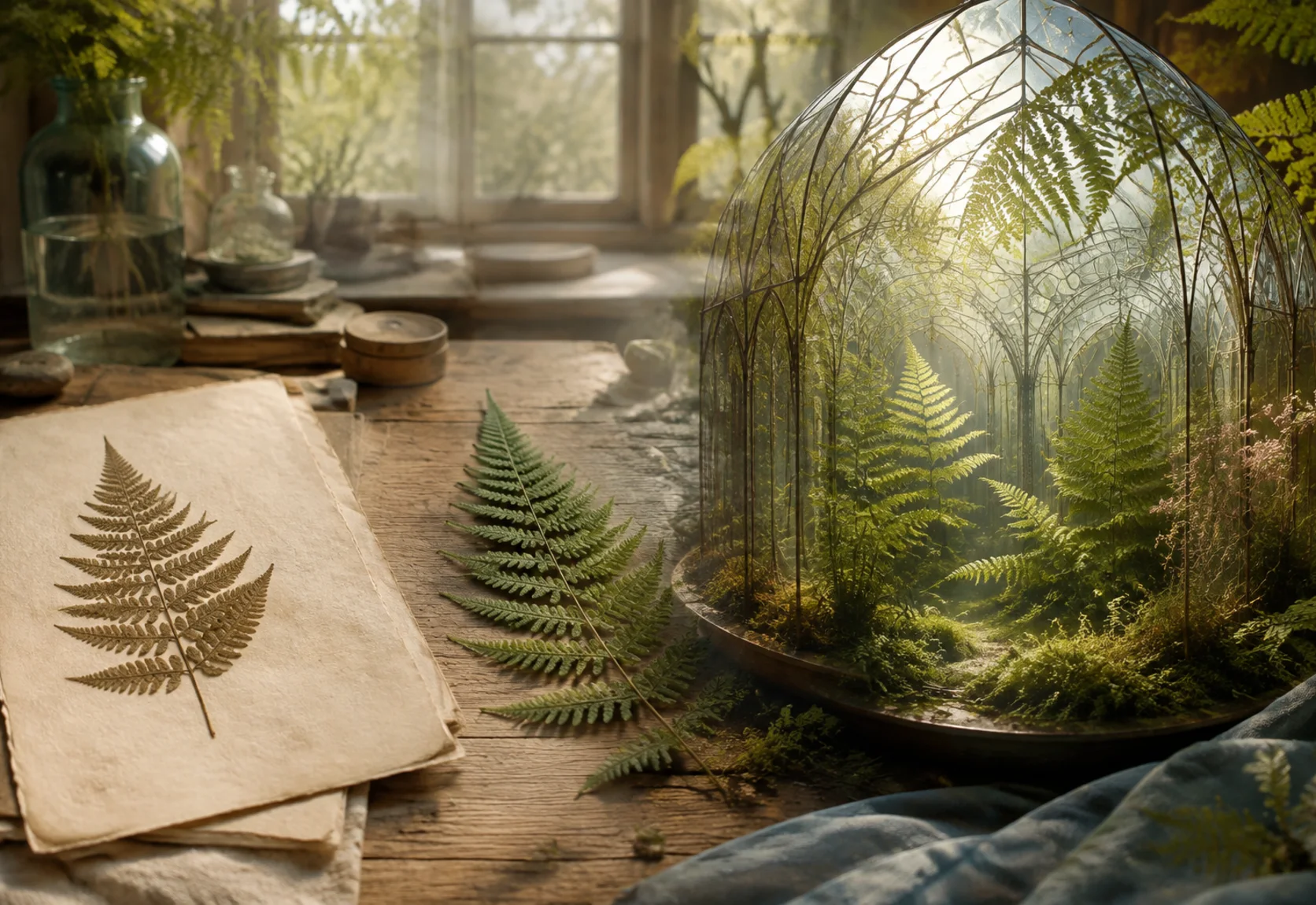
Guide a New Result with Reference Images
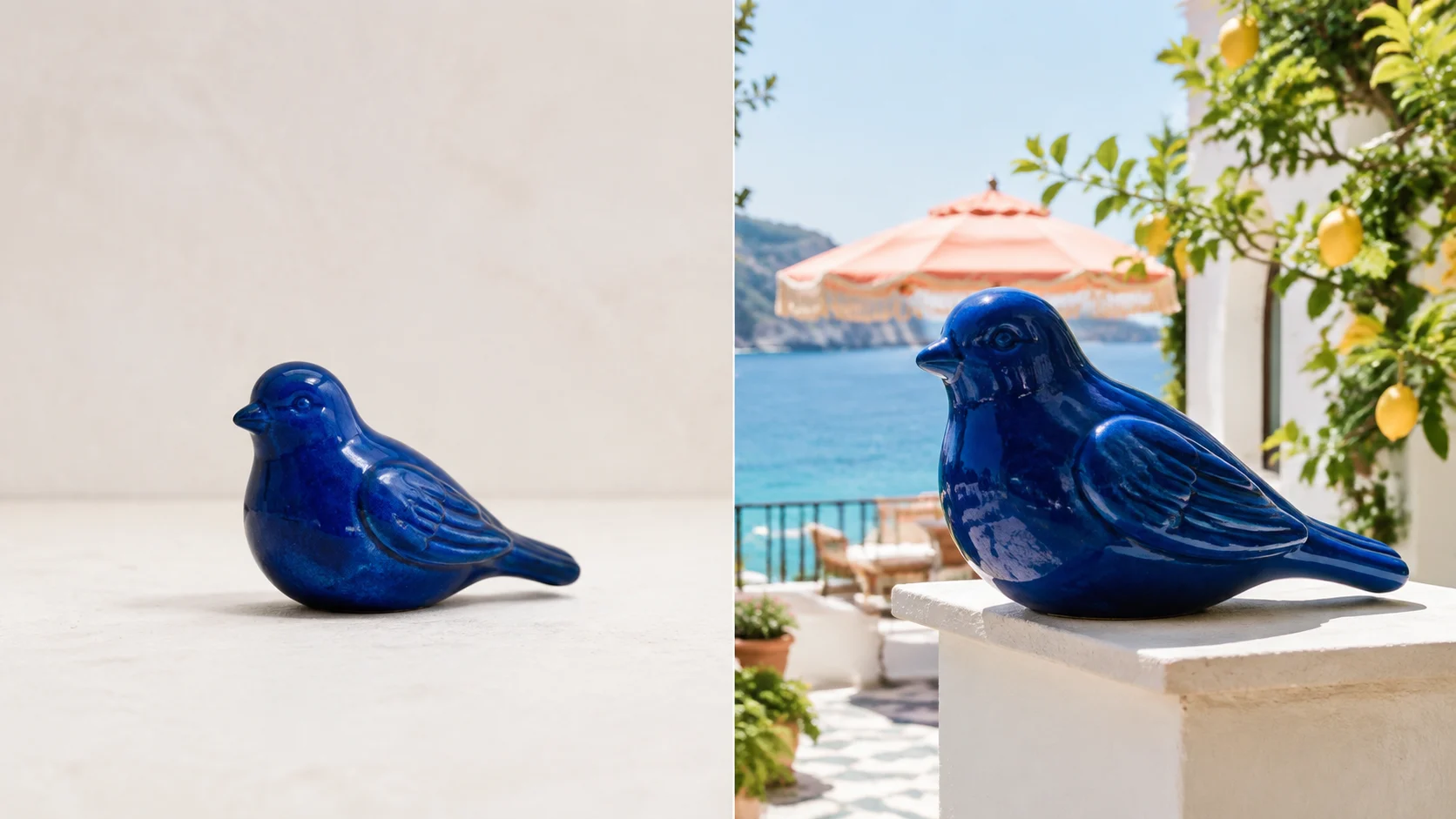
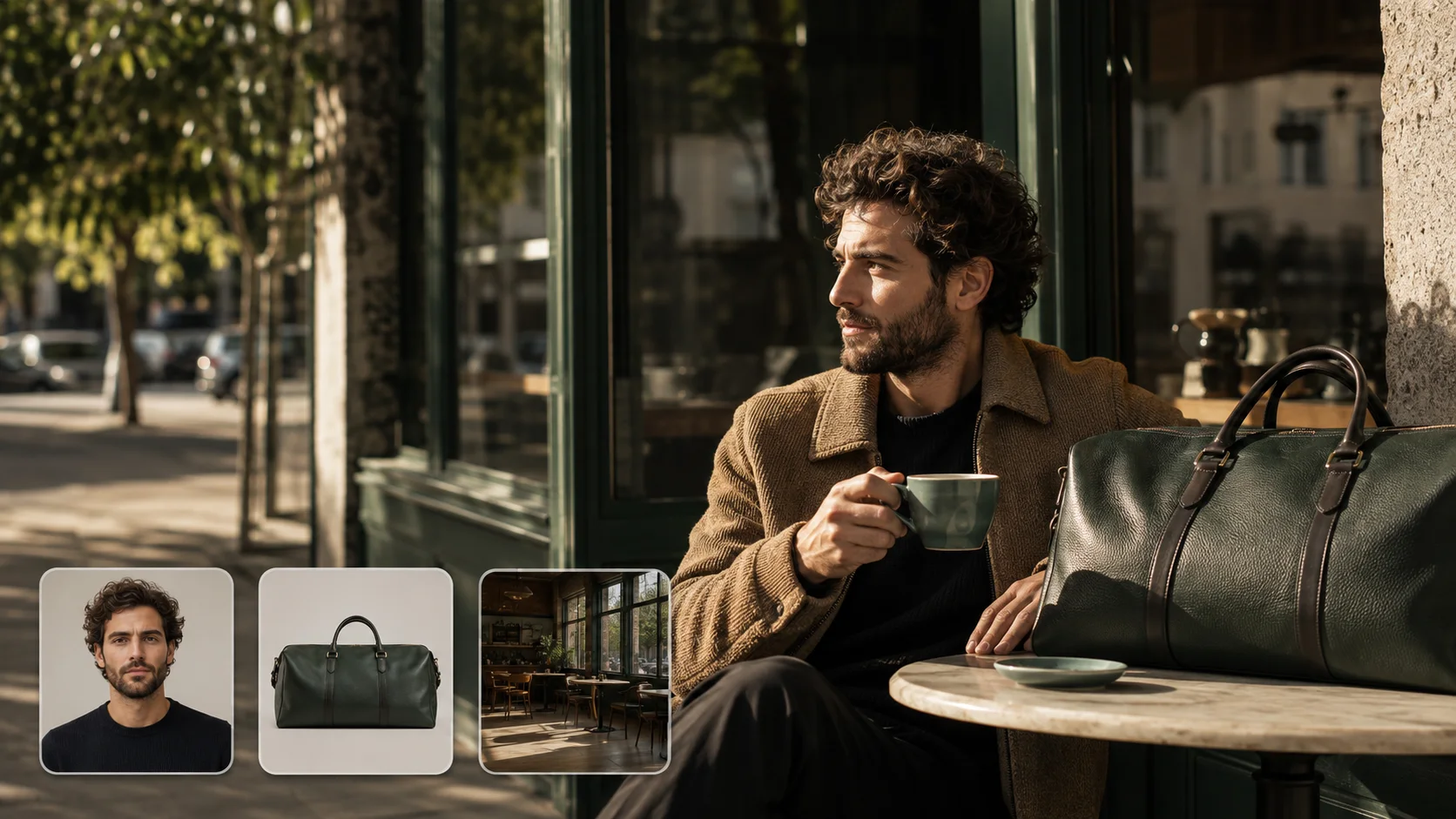
Use Image to Image when an existing photo, sketch, or visual reference should inform the result. Upload one or more images and describe the direction you want to explore. References provide guidance, while details in the generated image can still vary.
- Add multiple reference images within the selected model's limit
- Combine visual references with a written description
- Create guided variations rather than editing individual pixels
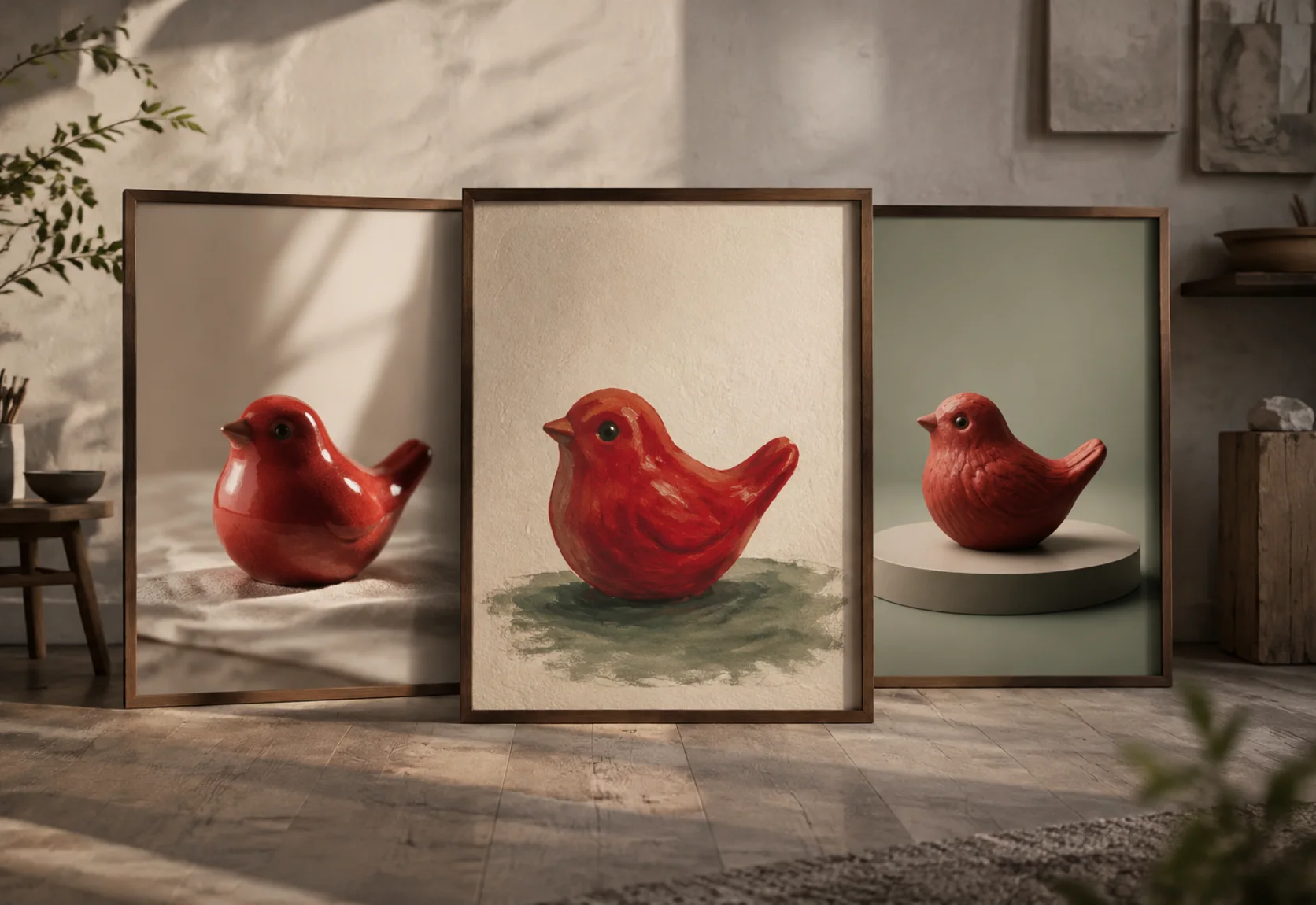
Choose a Generation Model for the Task
Different image models interpret descriptions and references in different ways. Select a model in the same generator, then use the quality or resolution controls available for that option.
- Switch models without moving to another creation page
- See model-specific quality or resolution settings when available
- Review the credit cost before starting a generation
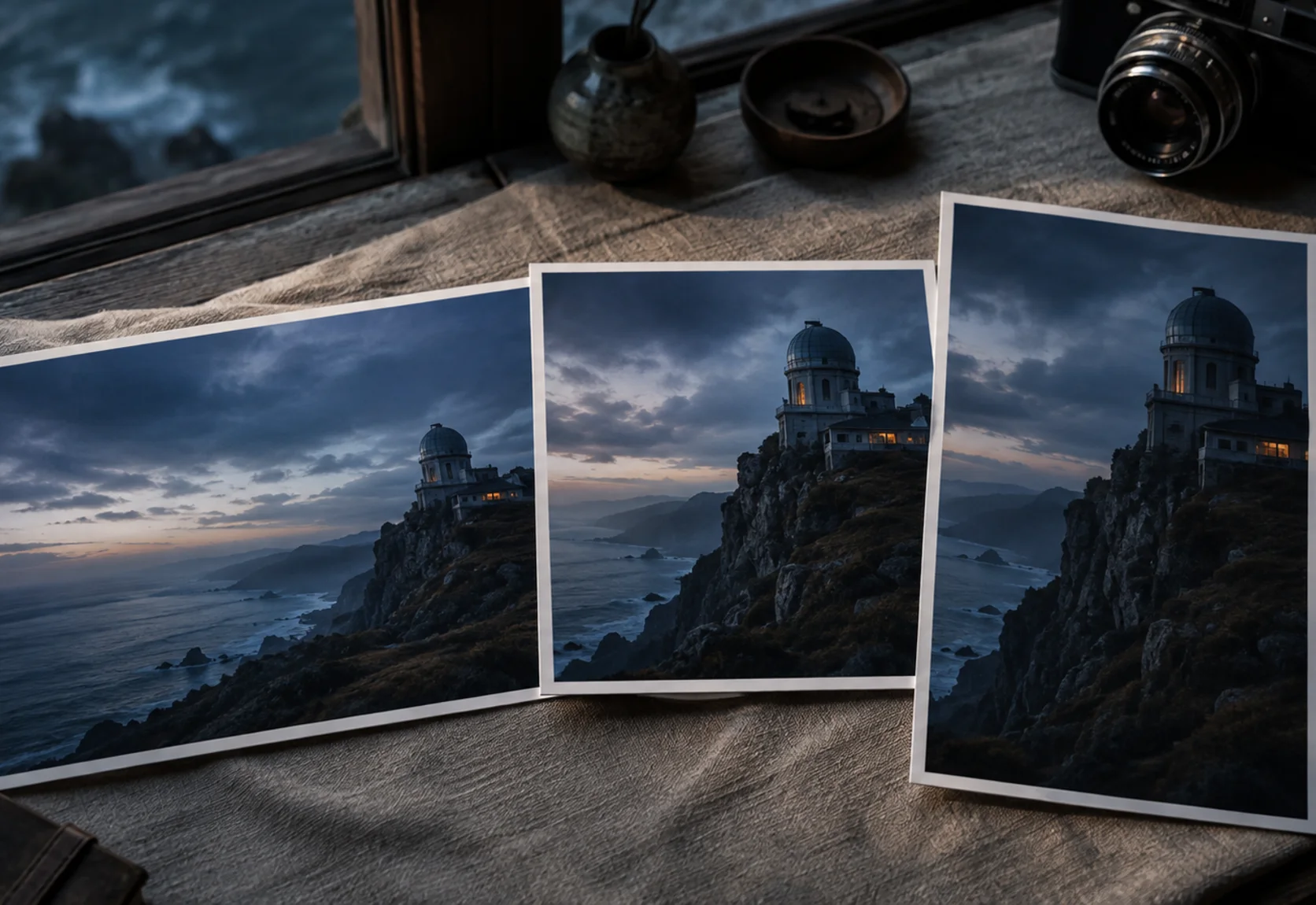
Set the Shape Before You Generate
Choose an aspect ratio that fits the intended layout before generation. Square, landscape, portrait, and wider formats are available, with the exact choices depending on the selected model.
- Prepare square, landscape, or portrait image directions
- Use the ratio options supported by the selected model
- Preview the finished result and download it from the workspace
See What the AI Image Generator Can Create
Browse example images made from different kinds of descriptions. Each result is paired with the prompt that guided it, so you can see how the subject, setting, and visual direction were communicated.
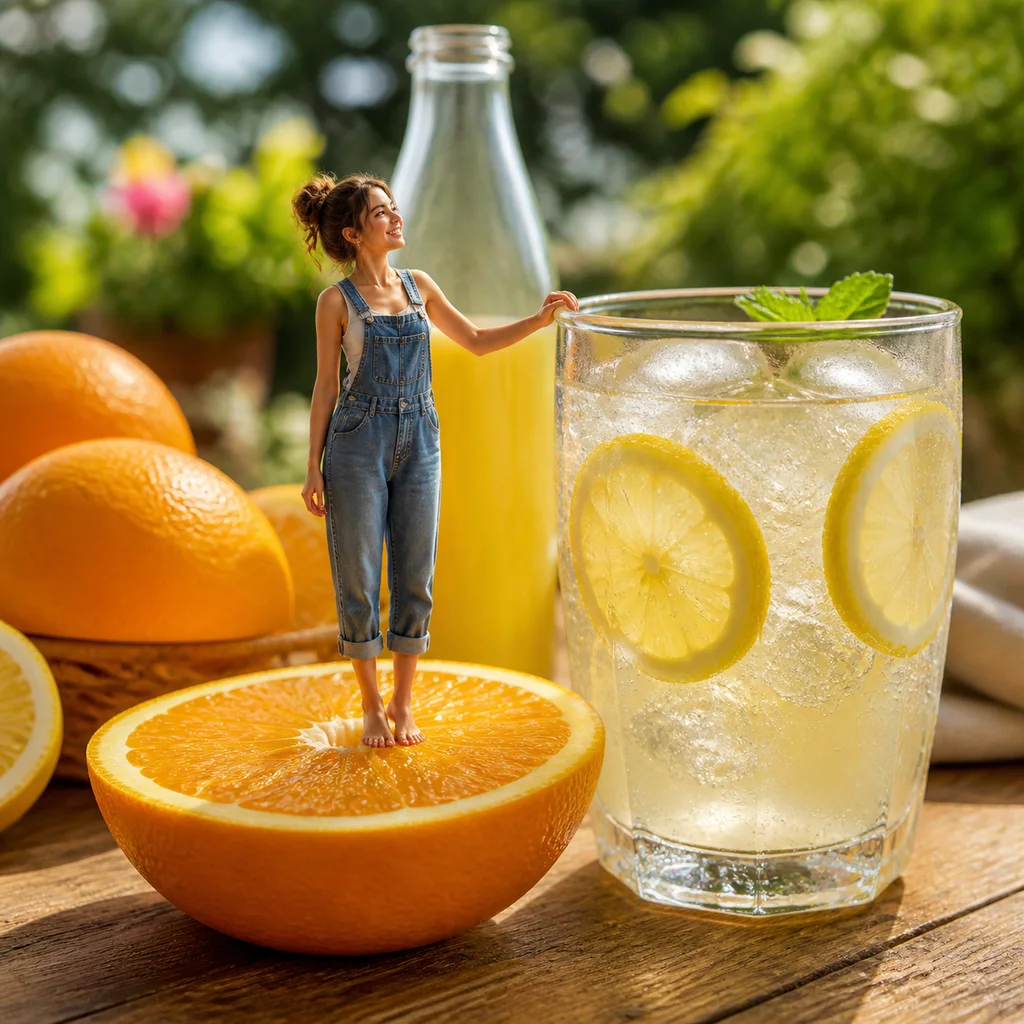 Photorealistic Concept
Miniature Citrus World
"Bright commercial photograph of a tiny woman in denim overalls standing on a giant orange slice beside an oversized sparkling lemonade glass, surrounded by fresh citrus on a sunlit wooden table, physically believable scale contrast, realistic fruit pores, condensation, ice, glass refraction, and warm garden bokeh."
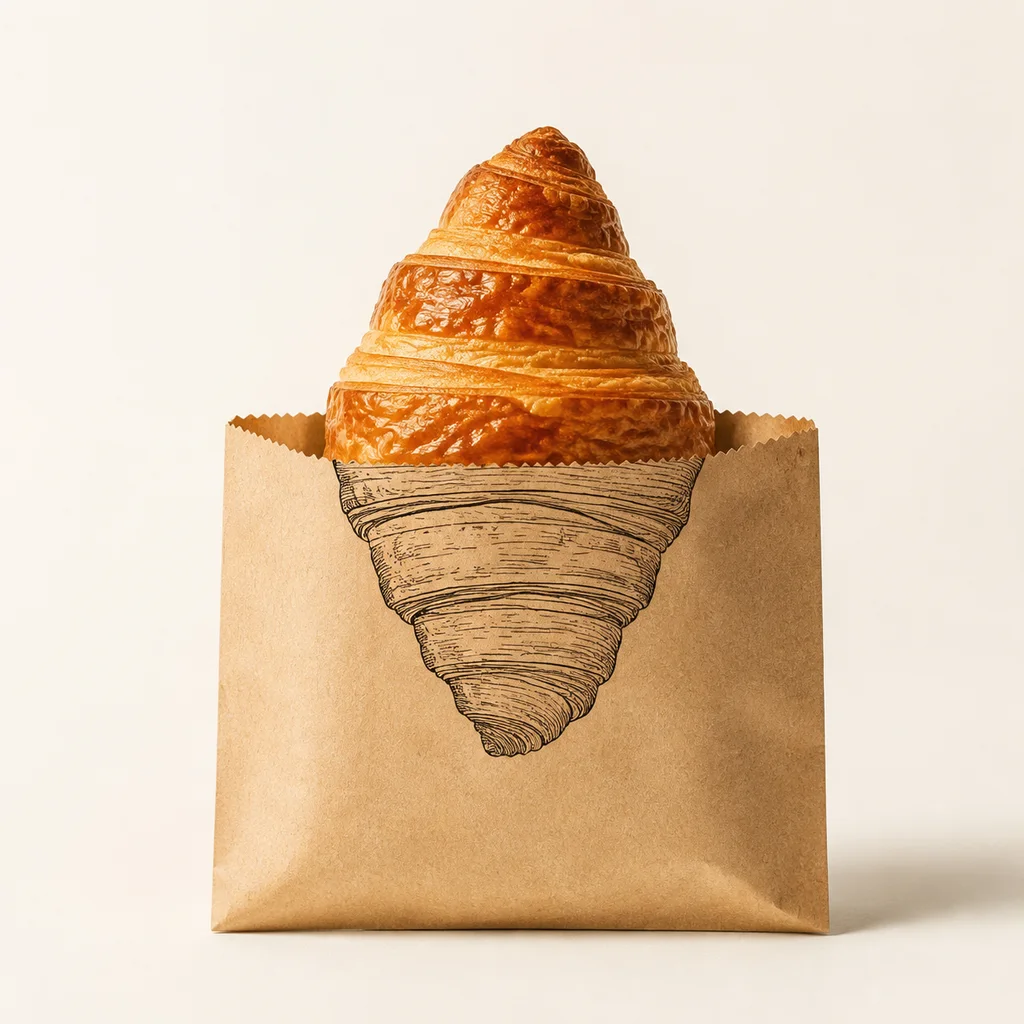 Product & Packaging
Real Object, Drawn Continuation
"Minimal studio shot of a real croissant emerging from a kraft paper bag; the visible pastry is photorealistic and its continuation is a clean black line illustration printed directly on the bag, perfectly aligned, seamless transition, soft shadows, no text."
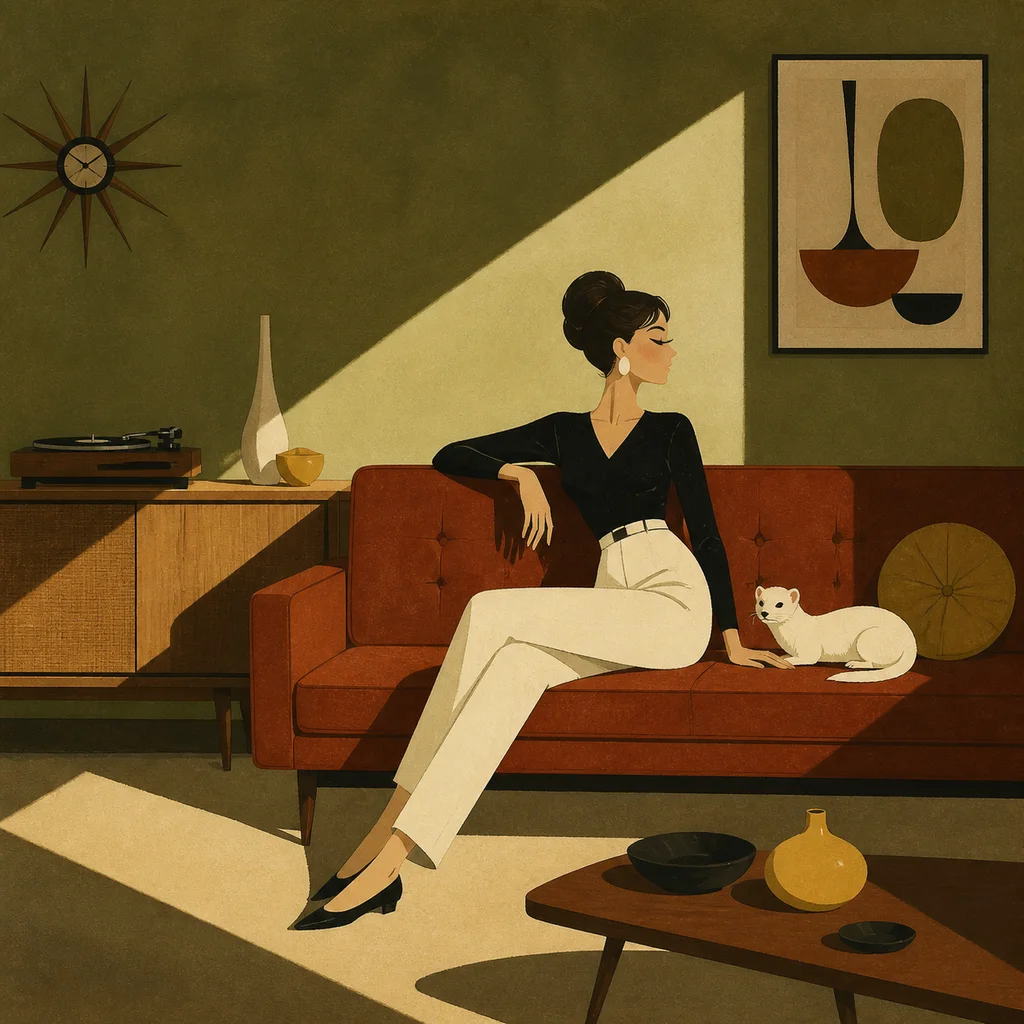 Editorial Illustration
Mid-Century Interior Scene
"Stylized mid-century modern illustration of a woman lounging on a deep rust sofa with a white ferret nearby, clean architectural geometry, one strong diagonal beam of sunlight, long hard-edged shadows, flat matte color fields, simplified elongated anatomy, subtle printed-paper texture."
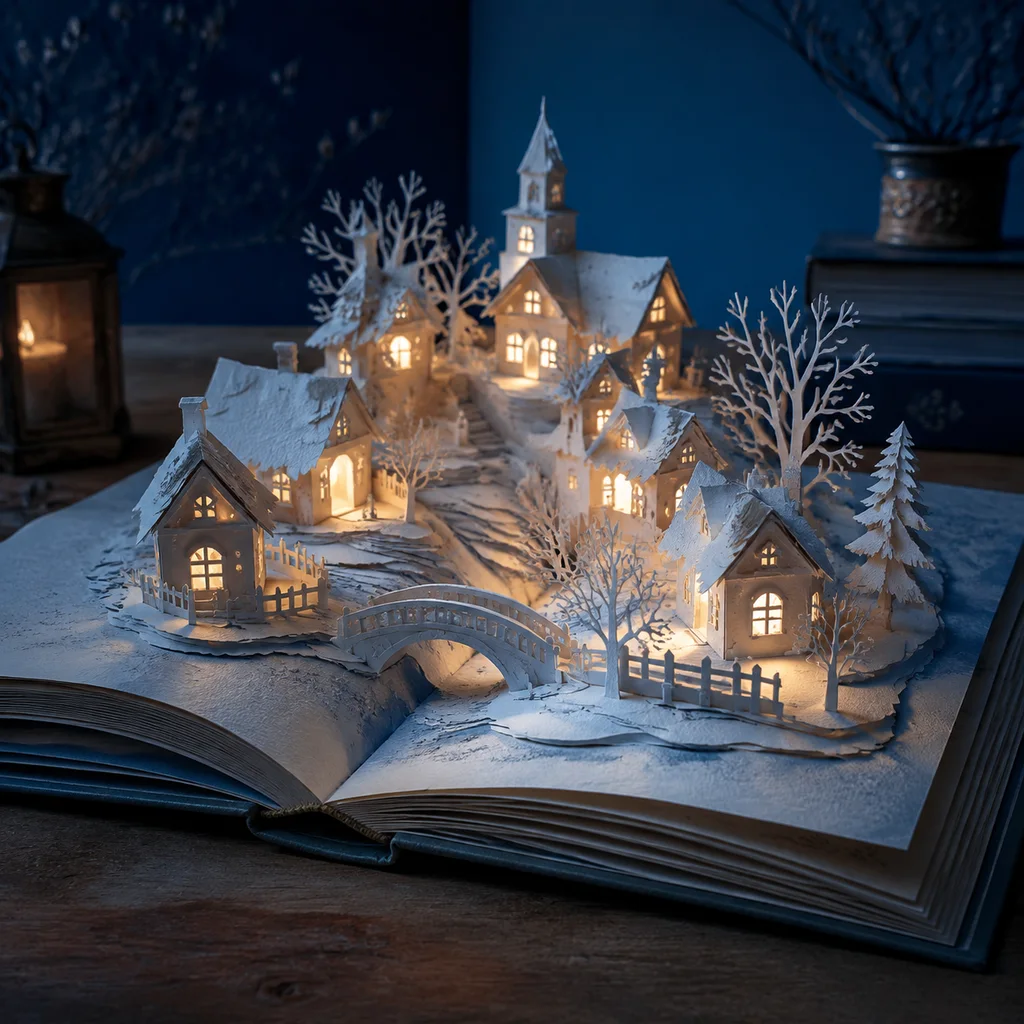 3D Paper Art
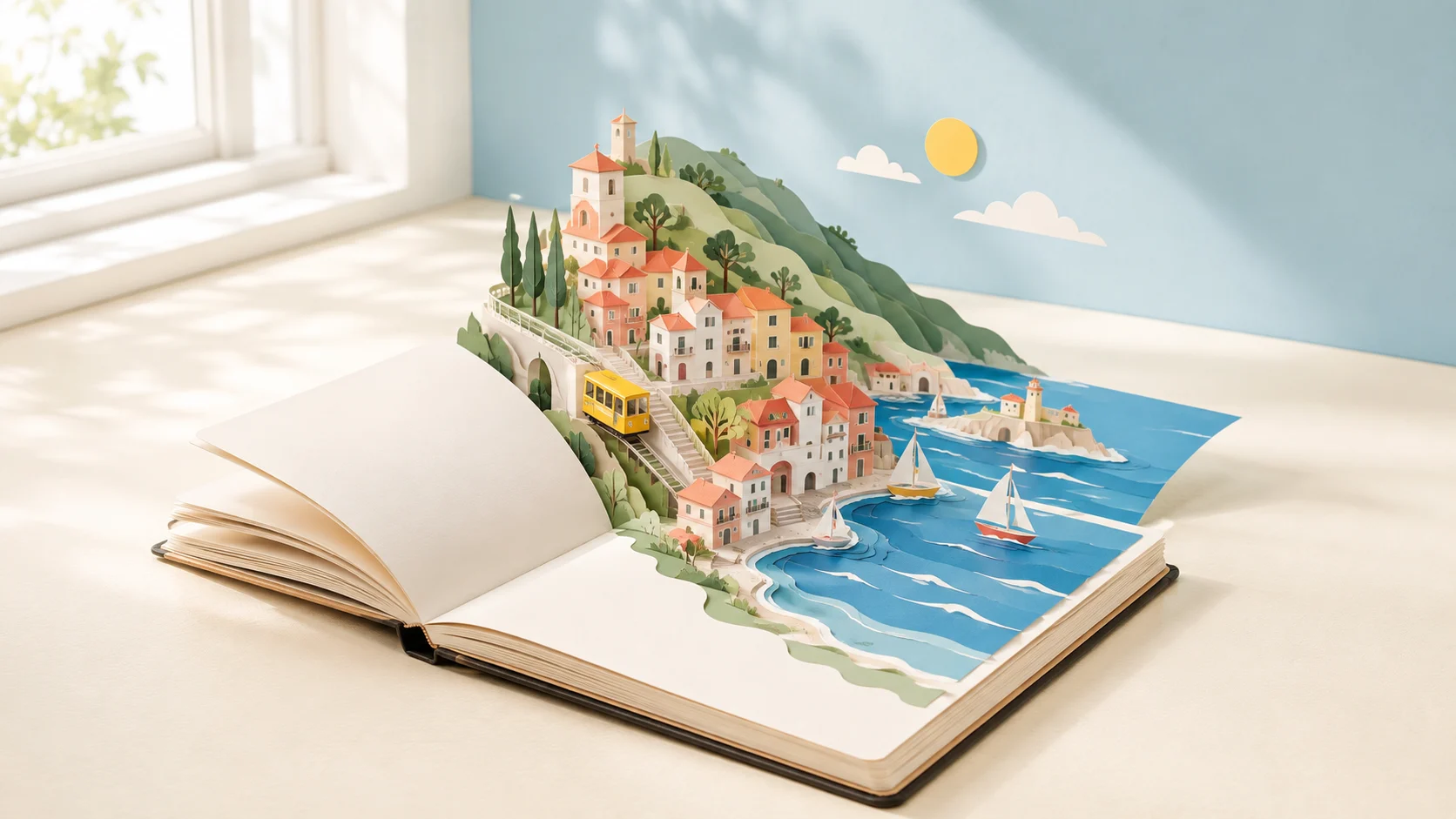
Pop-Up Winter Village
"A 3D pop-up book illustration featuring a snow-covered village with layered paper houses and trees unfolding from an open book, soft lighting, textured paper surfaces, playful handcrafted look, viewed from a slight angle to show depth."
Where an AI Image Generator Fits into Creative Work
Use the AI Image Generator when a project needs a new visual starting point, a reference-guided variation, or supporting artwork for a larger piece of content.
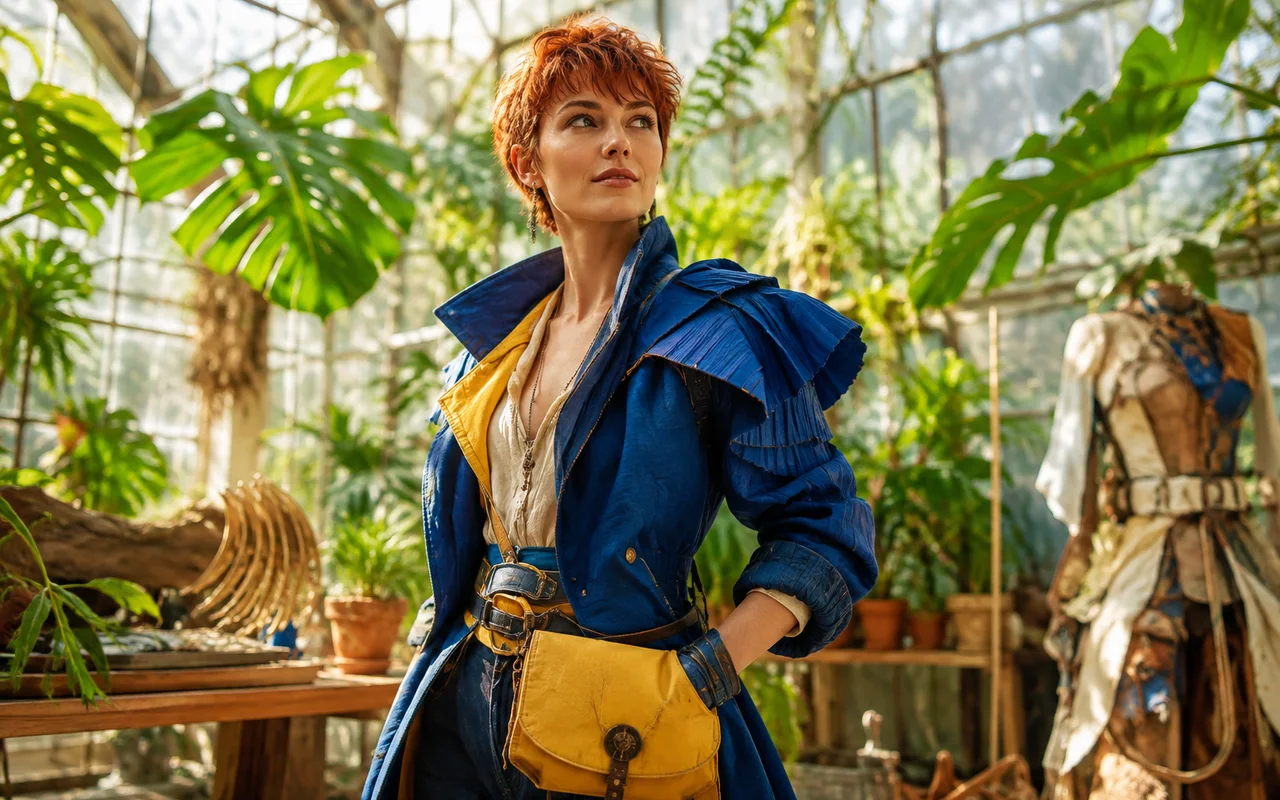
Explore Character Ideas
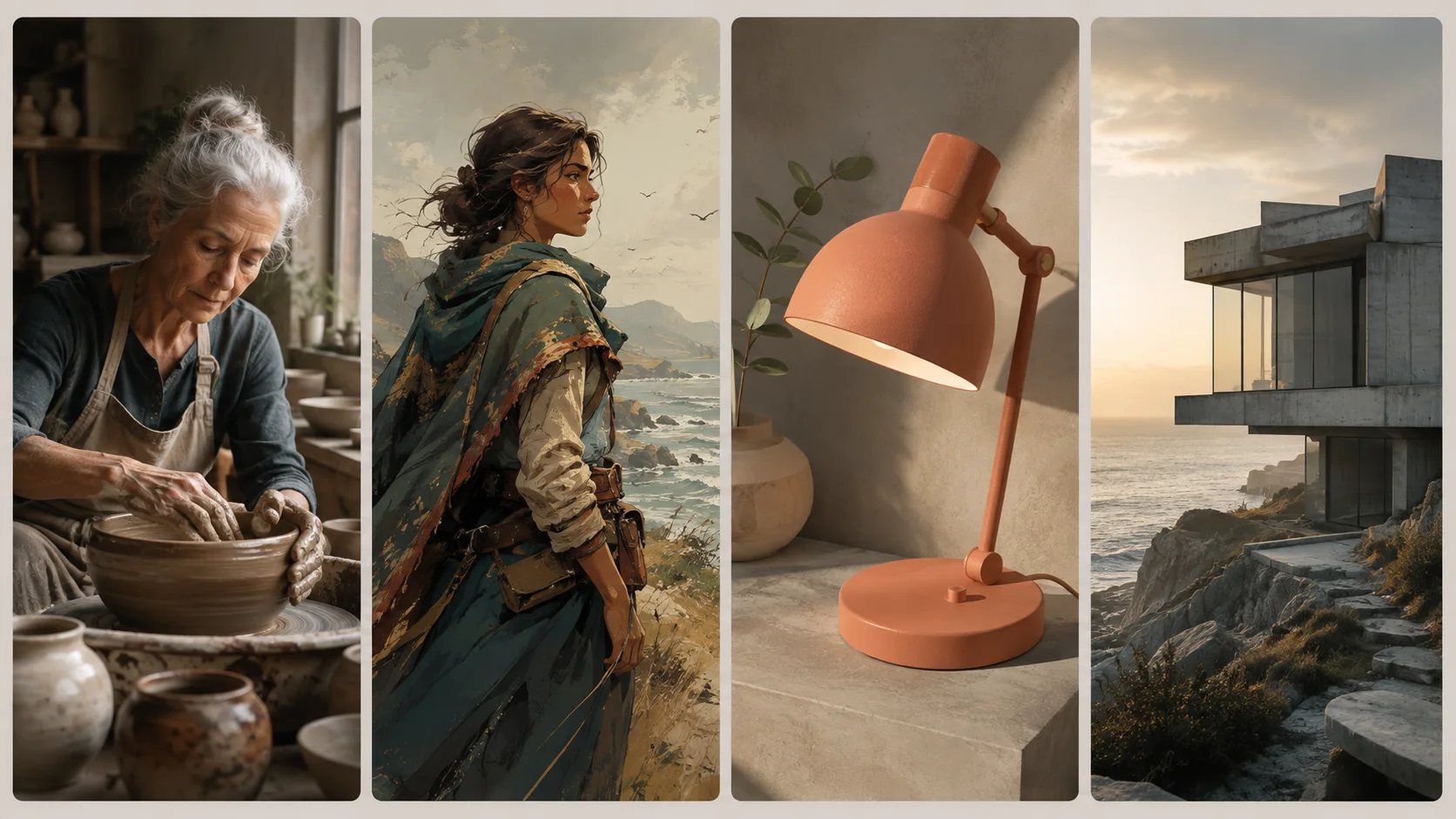
Develop early character directions for illustrations, animation, games, or profile artwork. Try different clothing, settings, and visual treatments before deciding which direction deserves more work.
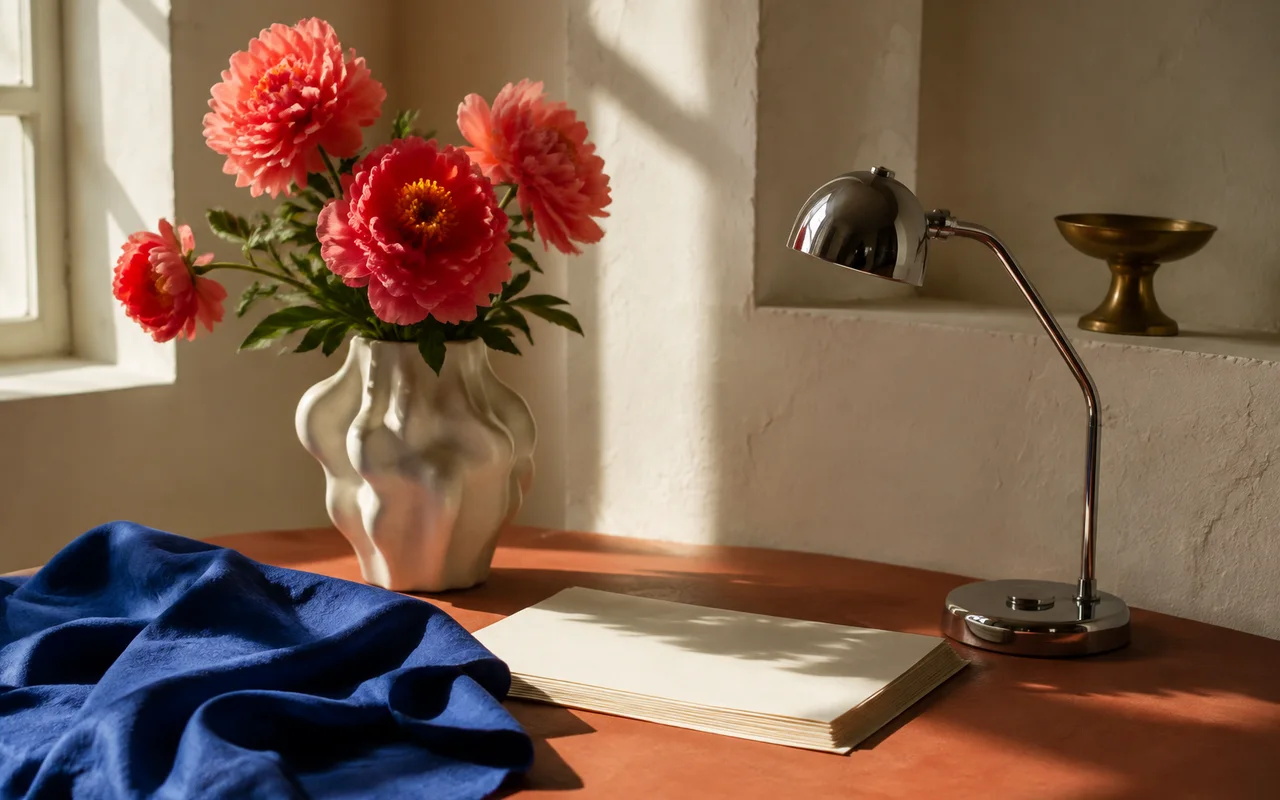
Create Editorial and Presentation Visuals
Turn a written topic into supporting artwork for articles, covers, slide decks, newsletters, and other content that needs a visual beyond standard stock imagery.
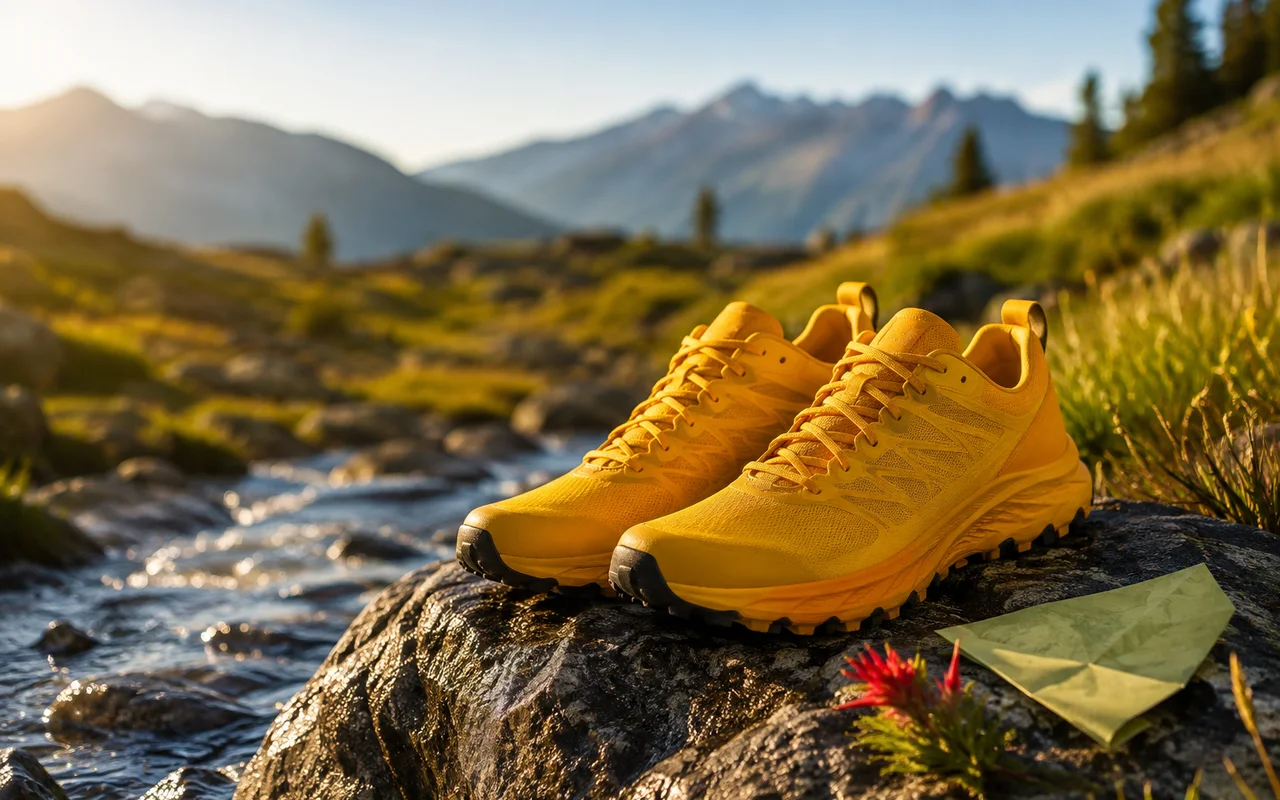
Develop Campaign Concepts
Explore background art, key visuals, and early campaign directions for landing pages, announcements, and promotional graphics before moving into final production.
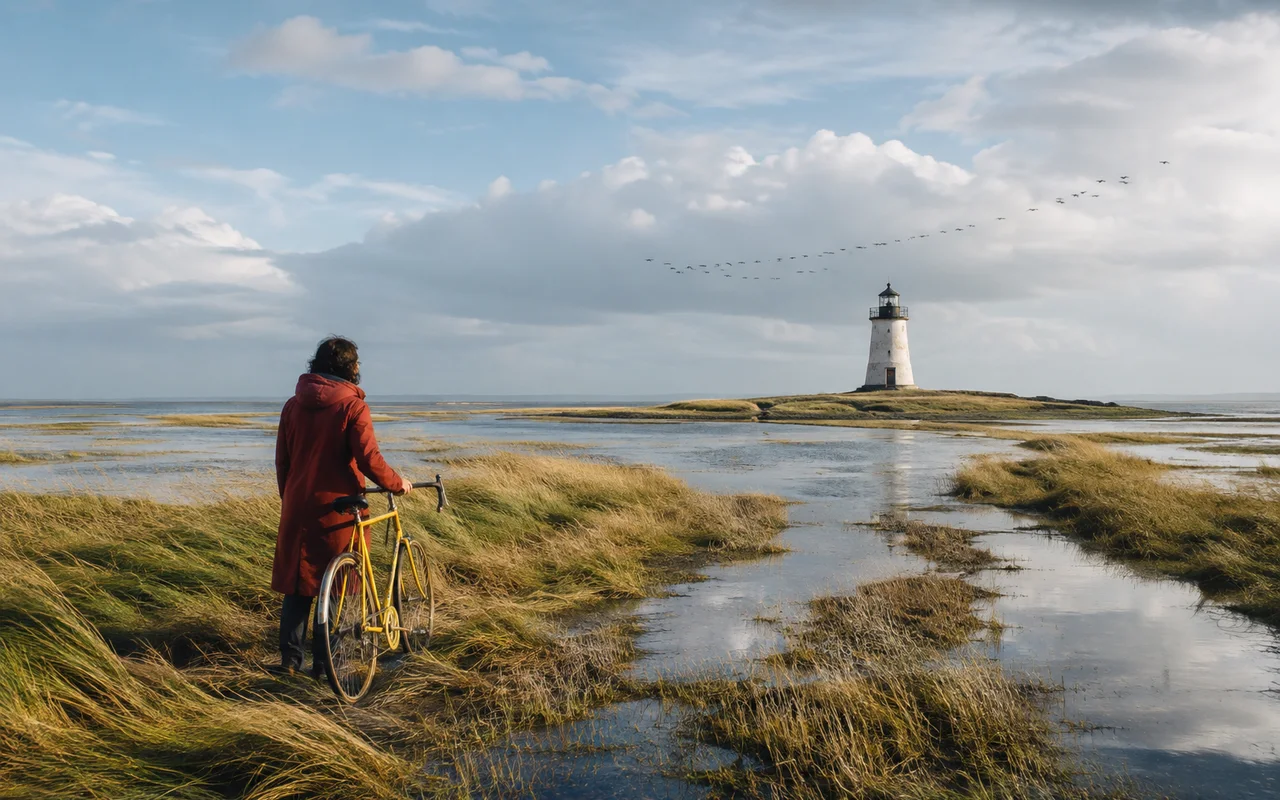
Plan Scenes and Visual Direction
Translate story ideas, locations, and atmosphere into concept frames or moodboard material that helps a team discuss the look of a scene before production begins.
How to Use the AI Image Generator in 3 Steps
Choose how you want to begin, give the generator a clear direction, and review the image before deciding what to adjust next.
Choose Text to Image or Image to Image
Select Text to Image to begin from words alone. Choose Image to Image when you want one or more uploaded images to guide the new result.
Describe the Image and Choose Its Format
Write what should appear in the image, then select a model and aspect ratio. Quality or resolution controls appear when the chosen model supports them.
Review, Adjust, and Download
Generate the image and review the result in the preview area. Download a useful version, or revise the description, references, model, or format for another attempt.
Frequently Asked Questions About AI Image Generator
Practical answers about Text to Image, Image to Image, reference uploads, model settings, and usage rights.
An AI Image Generator creates a new image from a written description, one or more reference images, or a combination of both. You provide the visual direction, choose the available settings, and review the generated result.
Start Creating with the AI Image Generator
Begin with a written idea or upload reference images to guide a new visual direction. Choose the mode that fits the material you already have.
Text to Image · Image to Image · Multiple reference images · Model-specific formats