Lip Sync AI
Kling LipSync only accepts 2-10s, 720p/1080p videos.
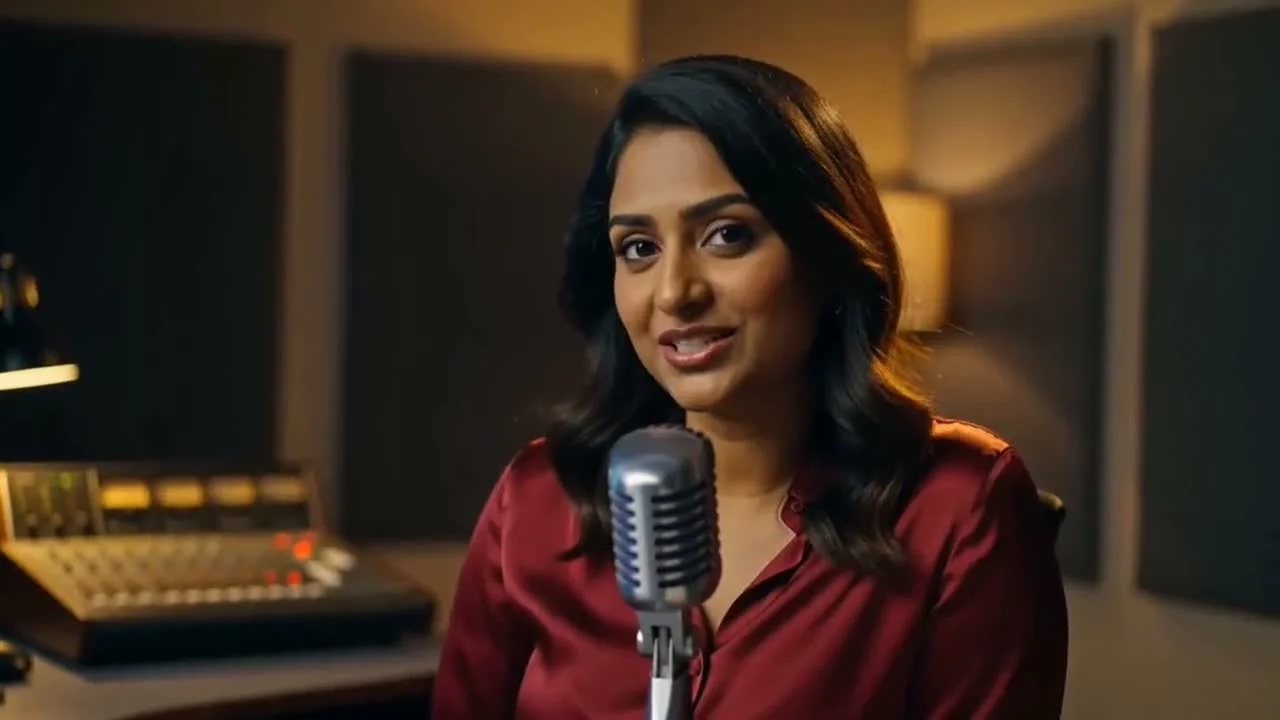
Lip Sync AI
Use Lip Sync AI to pair an existing speaking video with a replacement audio track. Update a recorded line, add a prepared translation, or give presenter and character footage new dialogue without filming the scene again.
Use Lip Sync AI to Update Existing Video Dialogue
Video lip sync is useful when the visuals still work but the spoken message needs to change. Start with the clip you already have, then add the revised recording instead of recording the video again.
Change a Recorded Line Without Shooting the Video Again
Product names, instructions, prices, or a short correction can change after filming. Upload the original speaking clip with the revised recording to make an updated version of the same scene.
- Replace revised lines in presenter and talking-head videos
- Reuse an existing performance, framing, and setting as the source
- Avoid animating each new mouth movement by hand
Pair One Speaking Video with Another Language Track
When a translation and voice recording are prepared separately, Lip Sync AI can apply that track to existing speaker footage. This supports AI dubbing for another version of the same tutorial, lesson, demo, or announcement.
- Start with a translated recording you already approve
- Reuse the same source clip for different language versions
- Keep script translation and voice production in your control
Use Presenter Footage or Existing Character Animation
Lip Sync AI starts from a video rather than a still image. Use presenter footage, talking-head clips, or existing character animation with one visible speaking face.
- Use existing MP4 or MOV footage as the visual source
- Match a replacement audio track to one visible speaker
- Choose a model based on clip length and available timing options
Video and Audio Requirements for Lip Sync AI
Supported video lengths and timing controls vary by model. Check the selected model in the generator, then prepare a clearly visible speaker and a clean voice recording.
Source Video
MP4 · MOVUse a front-facing or slight three-quarter view with the speaker's mouth clearly visible.
Kling LipSync accepts 2 to 10 second clips. Sync 2 and Sync 2 Pro accept clips from 2 to 30 seconds.
Upload a 720p or 1080p video in MP4 or MOV format, up to 100MB.
Speech Audio
MP3 · WAV · M4A · OGGUse spoken audio with limited background noise, loud music, or heavy reverb.
Choose a recording with clear speech and a pace that suits the movement in the source clip.
Upload an MP3, WAV, M4A, or OGG audio file up to 5MB.
Ways to Use Lip Sync AI with Existing Videos
Use Lip Sync AI when you want to keep an existing video but correct, translate, refresh, or replace its dialogue.
 Course Localization
Localized Lessons and Training Clips
Reuse an instructor segment with separately recorded translations for another language version of a lesson, onboarding guide, or internal training module.
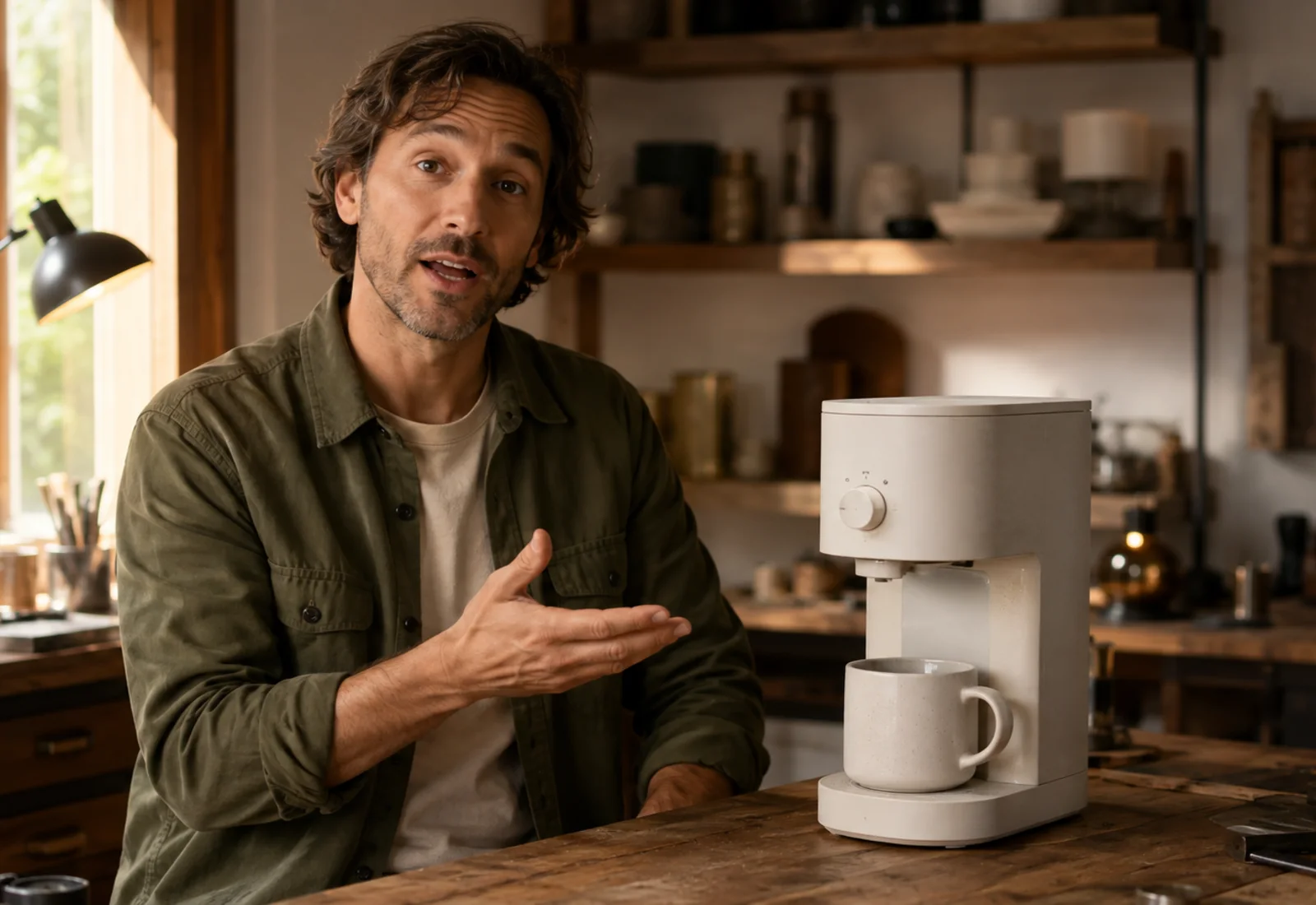 Product Updates
Revised Product Demos and Explainers
Update a product name, feature explanation, price reference, or closing line after the original presenter footage has already been recorded.
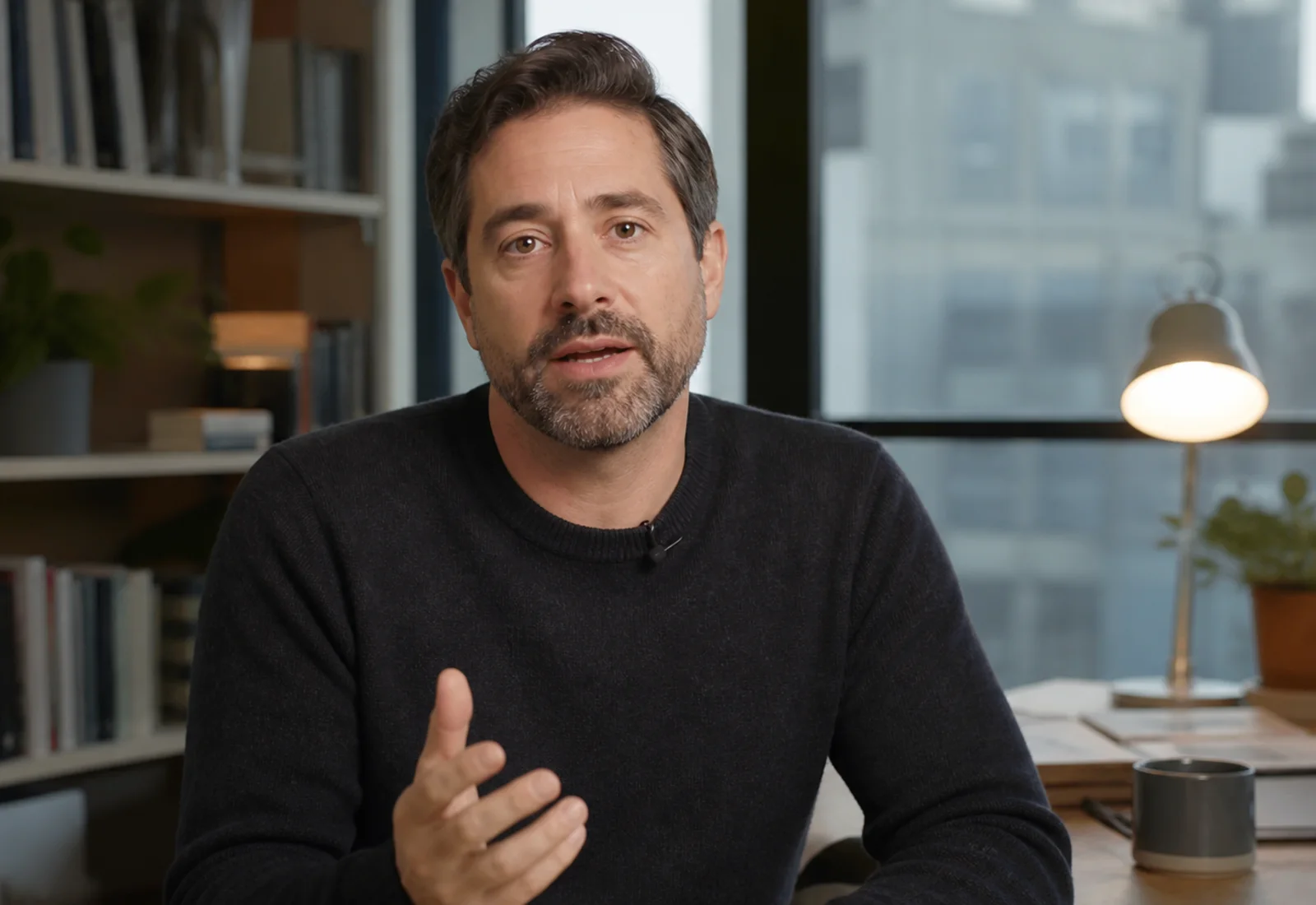 Presenter Updates
Corrected Talking-Head and Presenter Videos
Replace a misspoken line, outdated announcement, or revised voiceover while continuing to use the original presenter clip as the visual source.
 Animated Dialogue
New Dialogue for Existing Character Footage
Match a prepared voice recording to an already animated character clip for short scenes, game previews, or creator videos.
How to Use Lip Sync AI in 3 Steps
A video lip sync workflow needs an existing speaker clip, a replacement speech recording, and a model that supports the clip length.
Upload Source Video Clip
Select an MP4 or MOV clip with a clearly visible speaker. Supported durations range from 2 to 30 seconds, depending on the model.
Add the Replacement Audio Track
Upload an MP3, WAV, M4A, or OGG recording containing the dialogue that should be matched to the source video.
Choose a Model and Generate Video
Choose a model, review its duration and timing options, then generate and preview the updated video.
Frequently Asked Questions About Lip Sync AI
Practical answers about video duration limits, supported audio formats, multilingual speech, and commercial usage.
Lip Sync AI takes an existing video and a separate speech recording, then generates a new video in which the visible speaker's mouth movement follows the replacement audio.
Use Lip Sync AI with a New Voice Track
Start with a short video containing one visible speaker, add the replacement recording, and choose a model that supports the clip length.
MP3, WAV, M4A, and OGG audio · Model-specific video lengths · Commercial use on paid plans